What to Buy a Digital Artist as a Gift: Practical Ideas for Tools, Accessories, and Inspiration

You want a gift that actually helps your digital artist create more, not something that ends up on a shelf. Think about tools they use every day: a reliable drawing tablet or stylus, software or subscriptions that speed their workflow, or accessories that make long sessions more comfortable. The best gifts solve a real problem—upgrade their hardware, give them software they’ll use, or choose something that sparks new ideas.
This guide walks you through practical options across hardware, software, workspace upgrades, and creative extras so you can pick a gift that fits their needs and skill level. You’ll find ideas for budget buys, splurge-worthy tools, and personalized choices that show you understand their craft.
Understanding Digital Artists’ Needs
You should match gifts to how the artist works, the software they use, and their skill level. Think tools that save time, improve comfort, or open new creative options.
Recognizing Workflows and Tools
Look at whether they sketch, paint, animate, or design in 2D or 3D. A concept artist often needs a pressure-sensitive pen and a large tablet. A UI/UX designer will value color-accurate monitors and layout tools more than a drawing glove.
Check hardware: CPU/GPU-heavy tasks need faster computers or external GPUs. Lightweight tasks benefit from portable tablets or a high-quality stylus. Also note peripherals: adjustable stands, ergonomic chairs, and anti-glare screens cut fatigue and boost output.
Ask about file formats and pipeline steps. Does their work move between sketch, render, and compositing? Tools that speed file export, backup, or collaboration are useful gifts.
Identifying Popular Digital Art Platforms
Find out which apps they depend on: Photoshop, Clip Studio Paint, Procreate, Blender, or After Effects matter. Each app has specific accessory needs—e.g., Procreate users prefer iPad-specific styluses, while Blender users benefit from a three-button mouse or 3Dconnexion controller.
Check subscription versus one-time purchase models. A short-term subscription to a cloud service or a plugin can be more helpful than hardware if they rely on a particular app ecosystem.
Also note platform constraints: iPad and macOS users need accessories that match Apple’s ports and software, while Windows users may prefer Wacom or Huion tablets.
Assessing Skill Level and Preferences
Determine whether they’re a beginner, hobbyist, or pro. Beginners may want basic, low-cost tools and tutorial access. Pros often need industry-grade tablets, calibrated monitors, or faster storage for large files.
Respect artistic style and comfort. Some artists dislike drawing gloves or prefer traditional-feel nibs. Ask about tilt, pressure sensitivity, shortcut keys, and hotkeys—small details that change daily workflow.
Consider personal tastes: color choices for studio gear, desk layout, and whether they like teaching resources or experiment-driven gadgets. Matching gifts to these preferences makes them useful, not just nice to have.
Essential Digital Art Hardware
Good digital art starts with the right tools. Focus on a reliable input surface, a precise pen, and comfortable support items that cut fatigue and boost control.
Drawing Tablets and Pen Displays
Choose between a graphics tablet (no screen) and a pen display (built-in screen). Graphics tablets like budget Wacom Intuos models suit sketching and practice. Pen displays such as the XP-Pen Artist or Wacom Cintiq let artists draw directly on the image, which helps with accuracy and natural hand-eye coordination.
Look for these specs: active area size (13–22 inches for most workflows), resolution (2048–8192 pressure levels), and color-accurate screens for pen displays (sRGB ≥ 99% or advertised Delta E). Consider connectivity: USB-C and HDMI reduce adapters. Battery-free pens are easier for long sessions. If the artist works on the go, prioritize lightweight, compact models; for studio work, a larger, full-color pen display improves detail work.
High-Precision Styluses
The pen is as important as the tablet. A good stylus must offer high pressure sensitivity, tilt recognition, and low parallax on pen displays. Pressure levels around 4096–8192 provide finer line control for shading and varied brush sizes.
Check compatibility first—styluses often match specific tablet brands. Look for features like programmable buttons, eraser tips, and replaceable nibs. Active pens (Wacom Pro Pen, Apple Pencil) give the smoothest experience. For iPad artists, the Apple Pencil (2nd gen) pairs closely with Procreate and iPadOS. For Windows devices, Surface Slim Pen or Wacom pens work well. If budget is a concern, third-party pens can be solid, but verify responsiveness and driver support.
Ergonomic Accessories
Ergonomics keeps artists working longer without strain. A sturdy adjustable tablet or monitor stand lets you set a 15–30° incline, which reduces wrist bend and neck strain. For pen tablets, a small angled board or dedicated stand makes a big difference.
Add a smudge-free drawing glove to cut friction between palm and screen. A wireless numeric keypad or shortcut pad (e.g., ExpressKey Remote) speeds common actions like undo, brush size, and zoom. Finally, a wrist rest and an adjustable chair with lumbar support help maintain a neutral posture during multi-hour sessions.
Creative Software Solutions
Pick software that matches the artist’s workflow, budget, and platform. Focus on tools that remove friction: fast brushes, stable file handling, and reliable export options matter most.
Industry-Standard Programs
Industry-standard tools give artists stability and professional features. Adobe Photoshop remains top for painting, compositing, and texture work; it excels at layered PSD workflows and industry file compatibility. Clip Studio Paint is excellent for comics, linework, and inking thanks to vector-friendly lines and customizable pens. Procreate is a strong pick for iPad users who need fast, touch-first painting with a fluid brush engine.
When choosing, check platform and licensing: perpetual licenses (one-time buy) vs subscriptions, and whether the artist works on Windows, macOS, or iPadOS. Look at system requirements too — high-res canvases and 3D features need more RAM and GPU power.
Specialized Art Plug-ins
Plug-ins extend core apps with time-saving features. For Photoshop, consider color-grading packs, perspective grid generators, or noise-reduction tools that speed up photo-texturing and cleanup. For 3D and texture artists, Substance Painter add-ons and smart materials automate realistic wear, saving hours on hand-painting.
Choose plug-ins that match the artist’s niche. Animation-focused creators may prefer timeline and rigging extensions. Digital painters often benefit most from brush packs and stroke stabilizers. Check compatibility with the artist’s version of the host program and whether updates are included.
Subscription Gift Cards
Subscription gift cards let you give access to powerful tools without guessing the exact product. Offer cards for Adobe Creative Cloud, Clip Studio’s asset store credits, or a Procreate Pocket bundle via the App Store. Many services allow monthly or yearly gift codes that the recipient redeems themselves.
Think about the commitment level before buying. A short-term (3–6 month) subscription suits hobbyists or trying a new program. A year-long plan works better for pros who need steady access. Confirm platform redemption rules and regional pricing so the artist can activate the gift easily.
Upgrading the Digital Workspace
Focus on tools that cut eye strain, keep colors accurate, and make long sessions more comfortable. Small upgrades like task lighting and a calibration kit can change daily workflow and final artwork quality.
Adjustable Desk Lighting
Choose a lamp with adjustable color temperature (2700K–6500K) and stepless dimming so you can match ambient light to the artwork you’re making. A swing-arm LED lamp with a high CRI (90+) gives even illumination and reduces hotspots on paper or tablet surfaces.
Position the lamp to the opposite side of your drawing hand to avoid casting shadows. Use a diffuser or lower brightness when working on detailed shading to avoid glare on glossy screens. For video calls or streaming, switch to 5000K–5600K for neutral daylight and boost brightness slightly to keep skin tones natural.
Consider lamps with USB power or a built-in wireless charger to cut cable clutter. If you use dual monitors, get two small lights or one wide panel to evenly light the whole desk. Look for flicker-free LEDs to reduce headaches during long sessions.
Monitor Calibration Tools
A hardware colorimeter ensures colors on your monitor match prints and other devices. Pick a device that supports your monitor type (LCD, OLED) and includes software profiles for ICC export to common apps like Photoshop and Lightroom.
Calibrate in a neutral room light and after the monitor has warmed up for 30 minutes. Target settings: 6500K white point, gamma 2.2, and 120 cd/m² brightness for general digital work. Save profiles for different workflows—one for painting, one for print proofing.
If you manage multiple screens, calibrate each one individually and use a main reference monitor for color-critical work. Recalibrate every 4–8 weeks or whenever you change lighting. Many calibration tools also measure ambient light, which helps you decide desk lamp placement and monitor brightness.
Art Supplies for Hybrid Creatives
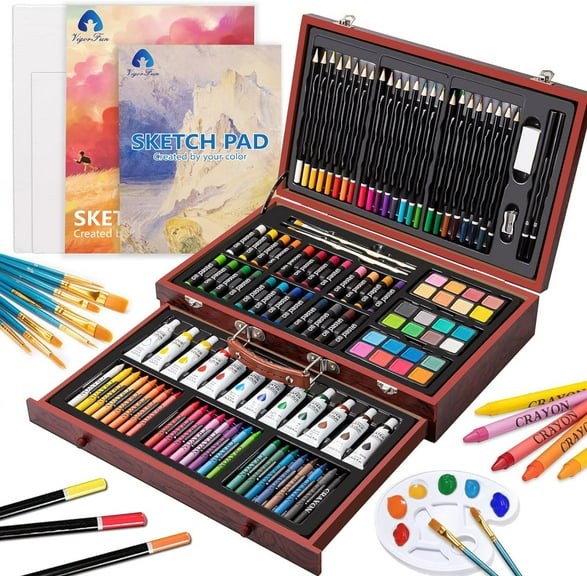
These picks focus on tools that work both for traditional sketching and for scanning or photographing into a digital workflow. Choose items that hold up to erasing, ink, and light washes so your physical work moves cleanly into pixels.
Sketchbooks and Drawing Pens
Pick sketchbooks with a firm spine and paper that resists bleedthrough. Look for sizes like A4 or A5 for portability, plus a larger 9×12 or 11×14 for finished concepts. Spiral-bound books lie flat for scanning; hardbound books protect pages in a backpack.
For pens, get a set that covers fine lines to bold marks. Include archival black ink fineliners (0.05–1.0 mm) for line work and a couple of felt-tip brush pens for expressive strokes. A mechanical pencil (0.5 or 0.7 mm) and a soft graphite stick help with quick value studies. Add an eraser that won’t tear paper—kneaded and vinyl are useful.
High-Quality Paper Varieties
Match paper to the media you use. For ink and line work, 90–120 gsm smooth paper or Bristol board prevents feathering and produces clean scans. For mixed media and light wash, choose 140–200 gsm cold-press or hot-press watercolor paper that handles water without cockling.
If you scan or photograph work, pick papers with low texture to avoid unwanted surface noise. For marker work, choose bleedproof marker paper or specific marker pads to keep colors true. Keep a stash of heavyweight paper (200+ gsm) for final pieces that you may want to scan at high resolution.
Personalized Gift Options
Personalized gifts show you noticed their style and tools. Choose items that match the artist’s workflow, favorite characters, or signature colors for the biggest impact.
Custom Artist Merchandise
Order items that feature the artist’s own work or brand. Popular choices include hoodies, tote bags, enamel pins, and phone cases printed with a high-resolution file of a finished piece or logo. Ask for a transparent PNG or vector file to keep edges clean when printing.
Pick materials that fit daily use: a heavy cotton hoodie for studio wear, a sturdy canvas tote for sketchbooks, or a metal enamel pin for jacket display. Check print placements and sizes before you buy. Low-run print shops and platforms like print-on-demand let you produce small batches without a big upfront cost.
Commissioned Art Prints
Buy a print of a custom piece created for the recipient or commission the artist you’re gifting to make a new work. Specify size, paper type, and edition (open or limited) to control cost and value. Standard options: 8×10 or 11×14 giclée on archival paper for bright, long-lasting color.
Provide clear direction: theme, color palette, and a deadline. If you commission another artist as a gift, share reference images and decide whether the piece will be framed. For physical gifts, include framing options—simple black or white frames with museum glass protect the print and make it ready to hang.
Educational Resources and Inspiration
Find options that teach specific skills and spark fresh ideas. Pick subscriptions that match skill level and books that show technique, process, or a strong visual library.
Online Course Subscriptions
Give a subscription that matches the artist’s software and goals. Choose platforms like Schoolism, Skillshare, or CG Spectrum for structured lessons in character design, color theory, concept art, or 3D basics. For industry-focused training, look at sites offering instructor feedback and project reviews.
Check for these features before you buy:
- Software-specific tracks (Procreate, Photoshop, Clip Studio, Blender).
- Instructor feedback or portfolio reviews.
- Downloadable project files and lifetime access options.
Short-term gift: a 3–6 month membership to test fit. Long-term: annual plans or bundled class packs for deep skill growth.
Art Book Recommendations
Pick books that combine clear instruction and strong visuals. Look for titles on anatomy, lighting, composition, and digital painting workflows. Instructional books by working professionals help translate studio methods into practical steps.
Good choices include:
- Books with step-by-step demos and reference photos.
- Collections of professional portfolios for stylistic inspiration.
- Technique guides focused on digital brushes, layer use, and color mixing.
Consider special editions or sketchbook-style books that artists can study and copy from, plus smaller pocket guides for on-the-go reference.
Gifts for Creative Enjoyment
These gifts make their workspace more inspiring and more fun. Pick items that add personality, comfort, or a playful spark to the studio without cluttering their workflow.
Decor for Art Studios
Choose lighting that improves color accuracy and mood. A daylight-balanced LED desk lamp with adjustable brightness and color temperature helps you judge tones and reduces eye strain. Look for CRI 90+ if color fidelity matters.
Add wall storage that keeps tools visible and tidy. Pegboards, magnetic strips, or floating shelves let you display pens, brushes, and reference prints so you can grab what you need fast. Pick finishes that match their studio style.
Include small art pieces or prints that inspire. Limited-run prints, artist trading cards, or framed postcards give visual variety without taking much space. Opt for acid-free mats and lightweight frames so they can rearrange easily.
Desk Gadgets and Fun Accessories
Give practical gadgets that still feel playful. A smudge-proof drawing glove, a weighted pen holder, or a silicone cable organizer reduces friction and keeps the desk neat. Choose durable materials like leather or metal for daily use.
Consider tech accessories that improve comfort. A compact USB desk fan, a vertical mouse for wrist support, or a low-profile phone stand for reference images helps with long sessions. Make sure devices are compatible with their setup.
Add tactile treats for short breaks. A small desktop puzzle, a stress ball shaped like an art tool, or a mini sketchbook for warm-ups encourages creative resets. Pick items that are easy to store and pleasant to touch.
Frequently asked questions
What if you don’t know their exact tools or software?
Ask about their setup or check what they use online. Gift cards for major stores or software subscriptions work well if you want to avoid guessing.
Which gifts help skill growth rather than just gear?
Online courses, books, and magazine subscriptions give lasting value. They help your artist learn new techniques and stay inspired.
Should you buy hardware or software first?
Start with what will change their daily work most. A quality drawing tablet, pen, or ergonomic chair improves comfort and output. Software or plugins make sense if you know they need them.
Are cheap options okay if you’re on a budget?
Yes. Useful, lower-cost gifts include stylus grips, screen protectors, reference books, and art supplies for mixed media. Thoughtful accessories can feel personal without costing much.
How do you pick something unique?
Look for items that match their style or projects, like a specialty brush pack, a course in a niche skill, or a subscription to a design app. Personalized items—like a custom sketchbook or name-engraved pen—show you thought about their art.
Can tools become obsolete quickly?
Some tech changes fast, but fundamentals like training, reference materials, and ergonomic gear stay useful. Focus on quality and flexibility to reduce the risk of obsolescence.
Thoughtful Presentation and Delivery
Wrap the gift in simple, high-quality paper or a reusable bag to match the care you put into choosing it. A clean presentation makes the gift feel professional and valued, especially for tools that support a creative practice.
Include a short, handwritten note that explains why you chose the item and how you hope it will be useful. Personal details—mentioning a project they’re working on or a style they love—make the note feel sincere.
If the item is fragile or technical, add clear labels and protective packing. This prevents damage and shows respect for their tools. For electronics, include original receipts, manuals, and warranty info in an envelope.
Offer setup help or a quick tutorial if the gift needs it. You can list this offer on the card or schedule a time to help. That small gesture helps them start using the gift right away.
Consider digital delivery for subscriptions, courses, or software licenses. Send the activation details in an attractive email or printable card. Add clear steps so they can redeem the gift without confusion.
Use a simple checklist when you wrap a bundle:
- Item(s) included
- Warranty/receipt location
- Activation codes or login steps
This keeps everything organized and reduces friction when they open it.