Ergonomics for Standing Desk Setups and Better Posture

The best standing desk ergonomics keep your elbows, wrists, shoulders, neck, and screen in neutral positions while making it easy to alternate between sitting and standing. A standing desk works best when it supports movement, not when it keeps you on your feet all day.
Ergonomics for standing desk setups comes down to one simple goal: keeping your body in a neutral, relaxed position while making it easy to change posture throughout the day. A well-adjusted desk can support better comfort and alignment, but the real difference usually comes from how you place your screen, keyboard, mouse, feet, and chair.
A lot of people assume a standing desk is automatically ergonomic. It is not. If the desk is too high, the monitor is too low, or you stand still for hours, you can trade one kind of strain for another. The better approach is to build a setup that supports both sitting and standing, then fine-tune it around your height, tasks, and room layout.
- Desk height: Set it so elbows are comfortably bent and shoulders stay relaxed.
- Screen position: Keep the monitor in front of you with the top near eye level.
- Movement: Alternate sitting, standing, and short walking breaks.
- Accessories: A monitor arm, external keyboard, and mouse often matter more than extras.
- Buying focus: Check height range, stability, depth, and weight capacity before buying.
What Is the Best Ergonomics for a Standing Desk?
The best standing desk ergonomics usually means your elbows rest near a 90-degree angle, your wrists stay mostly straight, your shoulders remain relaxed, and your screen sits high enough that you are not tipping your head downward. Your feet should feel supported, and you should be able to shift weight easily without locking your knees.
Start With Elbow Height, Screen Position, and Foot Support
If you only adjust three things, start with desk height, monitor height, and what is happening under your feet. Desk height should let your forearms stay roughly parallel to the floor while typing. If your shoulders creep upward, the desk is too high. If you are bending forward or dropping your wrists sharply, it is too low.
Your screen should sit directly in front of you, not off to one side, with the top of the display around eye level for most users. That helps reduce the common habit of craning the neck down. Foot support matters more than many buyers expect. Some people do well with a flat floor and supportive shoes, while others prefer an anti-fatigue mat or a low footrest to encourage subtle movement.
If your desk feels comfortable for only 10 or 15 minutes at a time, the issue is often not the desk itself but a small mismatch in monitor height or keyboard position.
Why Movement Matters More Than Standing All Day
Standing is not the finish line. Movement is. A static standing posture can tire the lower back, feet, calves, and shoulders almost as quickly as a poor seated posture can. The most ergonomic setup lets you switch between sitting and standing without friction, so you actually use both positions.
That is why many home office buyers should think of a standing desk as a posture-changing tool rather than a posture-fixing tool. Short standing intervals, weight shifts, brief walks, and occasional seated work often feel better than trying to stand through an entire morning. If your work involves sketching, editing, or frequent device changes, this matters even more, which is one reason readers comparing options may also find our guide to the best standing desk for artists useful.
How to Set Up a Standing Desk for Better Posture
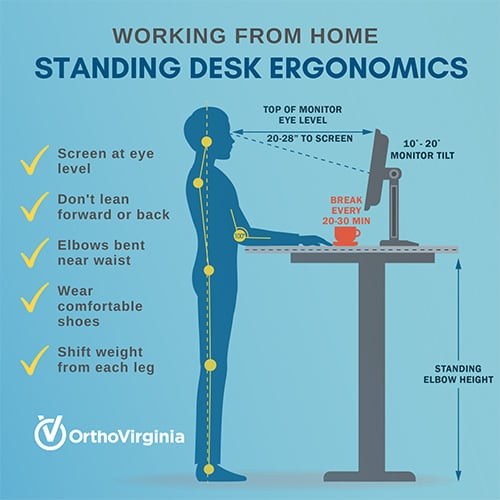
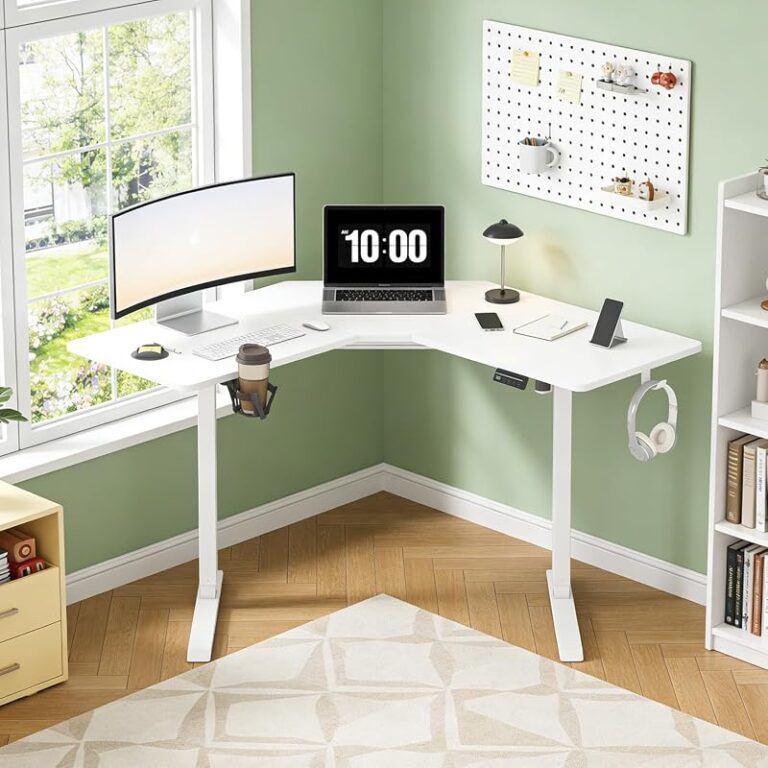
A standing desk setup with monitor, keyboard, and arms aligned ergonomically.
A good setup starts with the body first and the accessories second. Adjust the desk to you, then bring the monitor, keyboard, mouse, lighting, and floor support into alignment. If one piece cannot adjust enough, that usually signals a need for an accessory such as a monitor arm, laptop stand, or separate keyboard.
Ideal Desk Height for Shoulders, Wrists, and Elbows
When standing at the desk, let your upper arms hang naturally by your sides. Then raise or lower the work surface until your elbows are bent comfortably and your forearms are close to level. Your wrists should not be sharply bent upward, downward, or sideways.
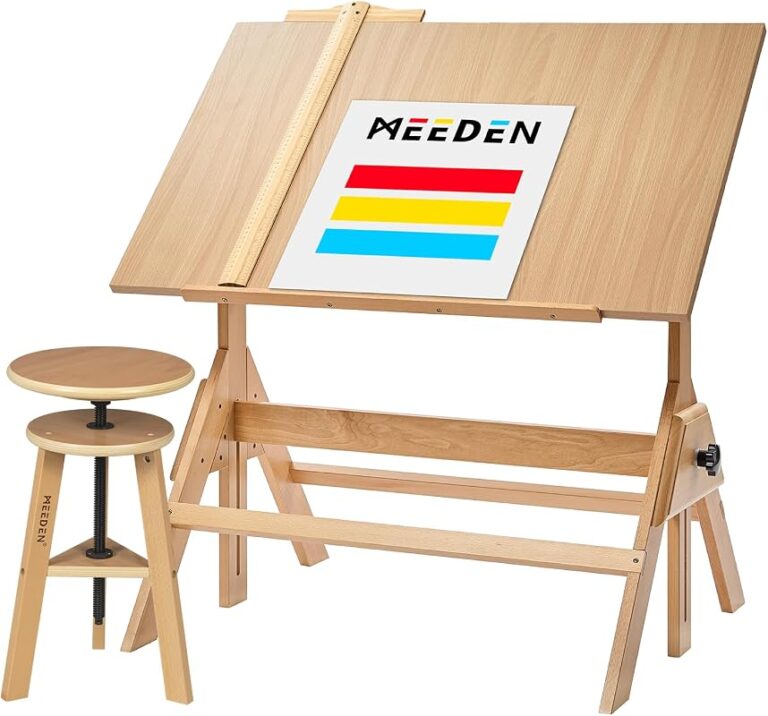
For writing tasks, some people prefer the desk a touch lower than for keyboard work. For drawing or detail work, a slight tilt or different task height may feel better than a single fixed position. That is one reason a standing desk may not be the only answer for creative workstations; some users may be better served by task-specific surfaces or by combining a sit-stand desk with a drafting setup.
Monitor Height, Viewing Distance, and Laptop Solutions
Monitor placement has a direct effect on neck posture. In general, the display should be about an arm’s length away, though exact distance varies by screen size, resolution, and eyesight needs. The top edge of the screen should usually be at or slightly below eye level, allowing a natural downward gaze without dropping the whole head.
Laptops are the most common ergonomic weak point because the screen and keyboard are attached. If you raise the laptop high enough for your neck, the keyboard becomes too high. If you keep the keyboard at a good typing height, the screen becomes too low. The practical fix is a laptop stand or riser paired with an external keyboard and mouse.
Monitor arm range, laptop stand height, and desk depth vary by model. Check the official product listing to confirm adjustability, clamp compatibility, and weight support before buying.
Keyboard, Mouse, and Anti-Fatigue Mat Placement
Your keyboard and mouse should sit close enough that you do not have to reach forward. Keep them on the same surface and at similar height so one hand is not lower than the other. If the mouse sits too far out to the side, shoulder tension tends to build quickly.
An anti-fatigue mat can help, but it is not mandatory for every setup. Some users love the cushioning, while others prefer a firmer floor with supportive footwear. The key is whether the surface encourages comfort and small posture changes without making you unstable. If you use a mat, make sure it does not create a tripping edge, especially in a shared workspace.
Adjust the desk so your shoulders are relaxed and elbows are comfortably bent.
Position the monitor so you can look forward rather than down.
Keep the keyboard and mouse near the front edge without forcing wrist extension.
Use a mat or footrest only if it improves comfort and movement.
What to Look for in an Ergonomic Standing Desk Setup
Not every standing desk supports good ergonomics equally well. The desk needs enough range, enough stability, and enough usable surface area to hold your gear without forcing awkward placement.
Height Range, Stability, and Weight Capacity
A desk that does not lower enough for seated work or rise enough for standing work is harder to fit properly. Height range matters most in shared households, for taller users, and for anyone pairing the desk with thicker mats, monitor arms, or heavy equipment. Stability matters too. A desk that wobbles while typing can encourage tense posture and make monitor placement less comfortable.
Weight capacity is worth checking if you plan to use dual monitors, speakers, storage trays, or mounted accessories. Manufacturer specifications are the best place to confirm this, since capacities vary widely by frame and desktop combination.
Desktop Depth, Edge Profile, and Cable Management
Shallow desktops can make it difficult to keep the monitor at a comfortable viewing distance. For many computer-based setups, more depth makes ergonomic positioning easier. Edge profile also affects comfort. A softer or rounded front edge generally feels better on the forearms than a sharp edge, especially during long work sessions.
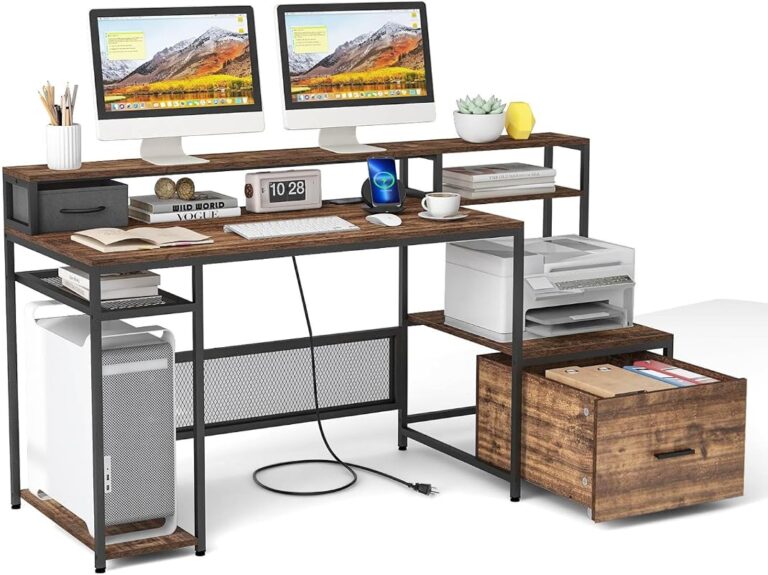
Cable management sounds cosmetic, but it can affect function. Loose cables may limit desk travel, interfere with foot placement, or force accessories into awkward positions. If you are planning a more storage-heavy workstation, our guide on how to choose a desk with storage can help balance organization with usable legroom and surface space.
Materials, Finish Quality, and Long-Term Durability
Materials affect feel as much as appearance. A desktop should be easy to clean, resistant enough for daily use, and finished well enough that edges, seams, or texture do not become distracting. Durability matters more if the desk will move up and down every day or serve multiple users.
Look closely at frame construction, finish consistency, and how accessories attach. A beautiful top does not help much if the base flexes or the surface scratches easily under normal office gear. Since specifications differ across brands and retailers, it is smart to verify desktop material, care guidance, and warranty terms before ordering.
Who a Standing Desk Setup Suits Best and Which Rooms It Fits
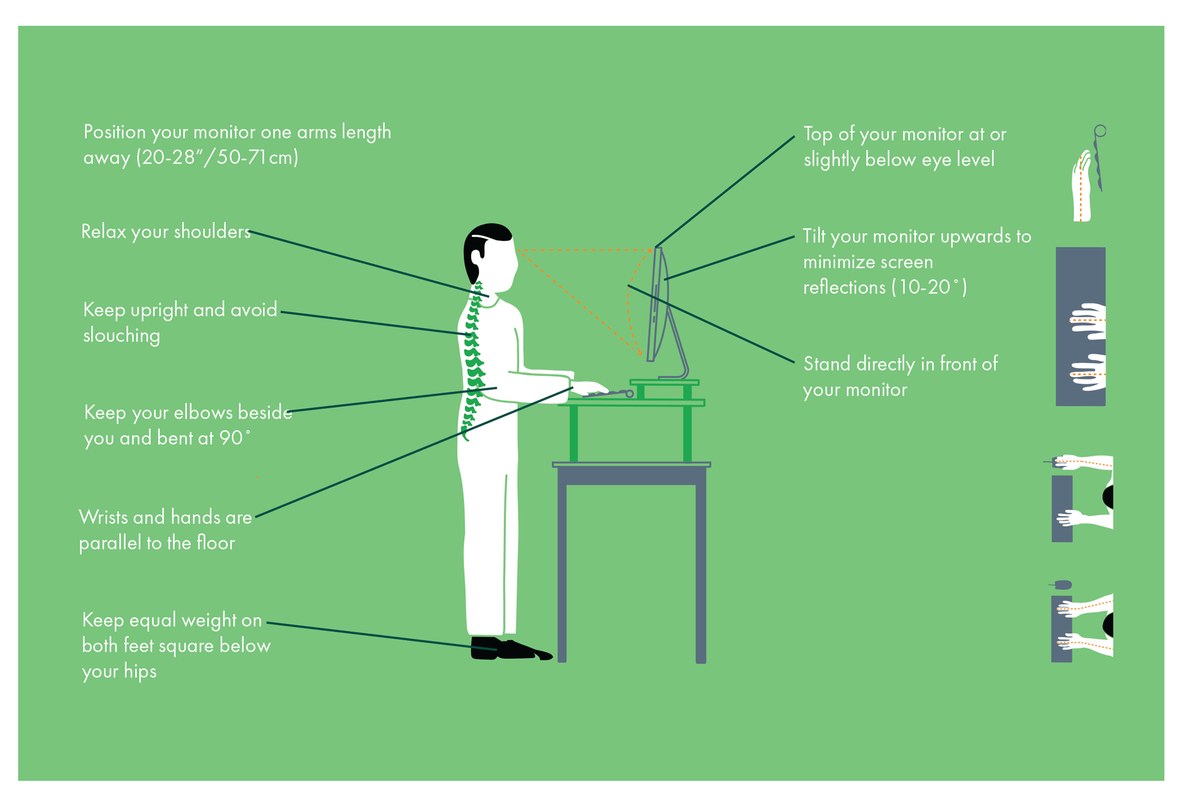
A standing desk setup in a home office with an upright working posture.
A standing desk can work in more spaces than many shoppers expect, but the best fit depends on workflow, room size, and whether the setup needs to stay visually calm in a living area or bedroom.
Home Office, Shared Workspace, and Compact Apartment Layouts
In a dedicated home office, a standing desk is usually easiest to configure because you have more freedom with monitor arms, mats, lighting, and floor clearance. In shared rooms, the challenge is often visual clutter and traffic flow. Make sure there is enough space behind the desk for movement if the desktop rises and lowers regularly.
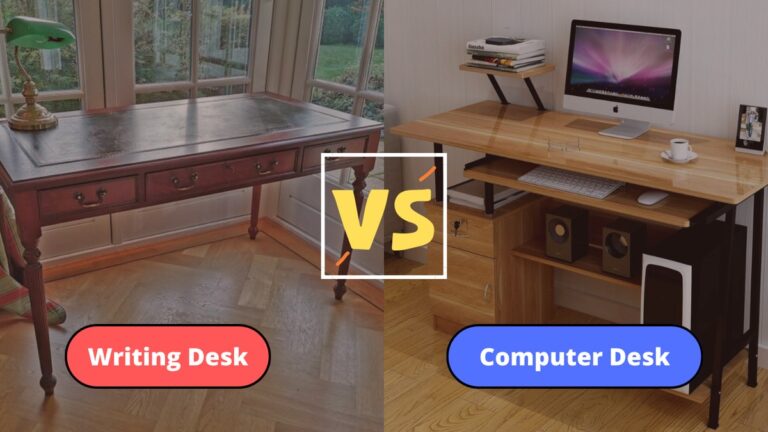
Compact apartments require more trade-offs. A smaller sit-stand desk can still be ergonomic, but only if the desktop is deep enough for the screen and input devices. If space is very limited, it may be worth comparing standing desks with compact alternatives such as the options in our guide to the best writing desks for small spaces.
Best Fit for Remote Workers, Creatives, and Hybrid Schedules
Remote workers who spend long hours at a computer often benefit most from a sit-stand routine, especially when meetings, writing, and admin work can be split between seated and standing blocks. Creatives may also benefit, but task type matters. Illustration, drafting, editing, and device-heavy workflows often require more nuanced surface planning.
Hybrid workers may appreciate a standing desk most when they need flexibility rather than a dramatic workspace change. If your schedule shifts daily, an adjustable setup can help you adapt without rebuilding the whole room.
The Benefits of Good Standing Desk Ergonomics
When the setup is right, the benefits are usually practical rather than flashy. You may notice less tension, easier posture changes, and a workspace that feels less draining by the end of the day.
Posture Support, Comfort, and Reduced Desk Fatigue
Good ergonomics can support a more natural head, neck, shoulder, and wrist position. That does not mean discomfort disappears instantly, but it can reduce the small strains that build up when equipment sits too high, too low, or too far away. Better foot support and more frequent position changes can also make standing feel sustainable rather than punishing.
For many people, the biggest gain is not “perfect posture” but fewer obvious bad habits: hunching toward the screen, leaning on one hip all afternoon, or shrugging the shoulders while typing.
Focus, Workflow, and Everyday Productivity Gains
Some users find that standing for short periods helps them stay engaged during calls, email blocks, or planning sessions. Others prefer standing only for specific tasks. Either way, ergonomics can improve workflow by reducing the need to constantly adjust, stretch, or step away because the setup feels off.
There is also a practical mental benefit to a workstation that fits well. When your tools are easy to reach and your screen sits where it should, the desk tends to feel calmer and more intentional.
Common Standing Desk Ergonomic Mistakes to Avoid
Most problems come from overcorrecting. People buy the desk, raise it up, and assume standing itself will solve the issue. In reality, a few repeat mistakes cause most discomfort.
Standing Too Long, Reaching Too Far, and Looking Down at Screens
Standing too long is one of the most common errors. If your feet or lower back start complaining quickly, try shorter standing intervals and more transitions instead of forcing longer ones. Reaching too far for a keyboard, mouse, or notepad can also load the shoulders and upper back more than expected.
Looking down at a laptop or low monitor is another major problem. A downward head angle may feel minor at first, but over time it often leads to neck and shoulder fatigue. If you use more than one screen, center the one you look at most often rather than splitting the difference poorly.
- Alternate between sitting and standing.
- Keep your primary screen directly in front of you.
- Place the mouse close to the keyboard.
- Locking your knees while standing.
- Using a laptop flat on the desk all day.
- Choosing a desk based only on looks or storage.
Wearing Unsupportive Shoes and Ignoring Floor Surface Comfort
Footwear matters more in standing setups than in traditional seated ones. Hard floors, thin slippers, or unsupportive shoes can make an otherwise good desk feel uncomfortable fast. You do not necessarily need specialty footwear, but you do need stable support that works with your floor surface.
Also pay attention to the room itself. If the floor is slick, uneven, or crowded with cords, accessories, and chair legs, your standing posture may become guarded and tense.
Limitations, Costs, and Value of an Ergonomic Standing Desk Setup
A standing desk can be a worthwhile home office upgrade, but it is not a cure-all. The value depends on whether the desk fits your body, your room, and your work habits.
What a Standing Desk Can and Cannot Fix
A standing desk can make it easier to vary posture, improve screen placement, and reduce some workstation-related strain. It cannot automatically correct chronic pain, poor movement habits, or a setup built around the wrong accessories. If discomfort persists, it may be worth consulting a qualified health professional rather than continuing to tweak the desk endlessly.
It also cannot fully compensate for a poor chair, bad monitor placement, or a cramped room layout. Ergonomics is a system, not a single product category.
Budget Priorities: Desk, Chair, Monitor Arm, and Accessories
If you are building a setup gradually, prioritize adjustability first. A desk with a suitable height range and stable base usually matters more than decorative extras. After that, a supportive chair, a monitor arm or stand, and an external keyboard for laptop users often deliver the biggest ergonomic improvements.
Accessories should solve a specific problem, not just fill the desk. A mat, footrest, wrist rest, or cable tray can be useful, but only if it improves your actual working posture. For seated transitions, chair quality matters enough that readers may also want to compare options in our guide to the best desk chair for artists, especially if comfort is breaking down during longer sessions.
When a Converter or Desk Riser Makes More Sense
A full standing desk is not always necessary. A converter or desk riser can make sense if you already own a solid desk, rent a small apartment, or need a lower-cost way to test a sit-stand routine. The trade-off is that converters can reduce usable depth, add visual bulk, and limit keyboard or monitor positioning depending on the design.
They work best when your existing desk height is already suitable for seated use and the riser gives enough range for standing without forcing you to look down or reach up.
Care, Maintenance, and Final Recommendation for Better Standing Desk Posture
Even a well-designed setup needs occasional maintenance. Small shifts in equipment, flooring, or daily routine can slowly pull your posture out of alignment.
Rechecking Height Settings, Cleaning Surfaces, and Maintaining Mechanics
Recheck your desk height after adding a new chair, monitor arm, keyboard tray, or floor mat. Clean the desktop regularly so dirt and debris do not interfere with accessories or arm comfort. If the desk is motorized, follow the manufacturer’s care instructions for lifting columns, control panels, and weight limits.
Do not overload a sit-stand desk beyond its stated capacity, and confirm that mounted accessories are compatible with the desktop thickness and frame design. For electrical issues or unstable operation, refer to the manufacturer rather than attempting unsupported repairs.
A Practical 2026 Verdict on Building a More Ergonomic Home Office
The best standing desk setup is the one that helps you move more, reach less, and work with your head, shoulders, wrists, and feet in a more neutral position. In practical terms, that usually means choosing a desk with enough height range and stability, then pairing it with the right screen height, input placement, and seated support.
If you are deciding where to spend first, prioritize fit over features. A modest desk with the right dimensions and adjustability will usually serve you better than a more elaborate setup that never quite matches your posture. Before buying, confirm the official specifications for height range, weight capacity, desktop depth, warranty, and accessory compatibility so your ergonomic plan works on paper and in the room.
- Set desk height by elbow position, not by guesswork.
- Raise screens high enough to avoid looking down for long periods.
- Alternate sitting and standing instead of trying to stand all day.
- Prioritize adjustability, stability, and desk depth before extras.
Frequently Asked Questions