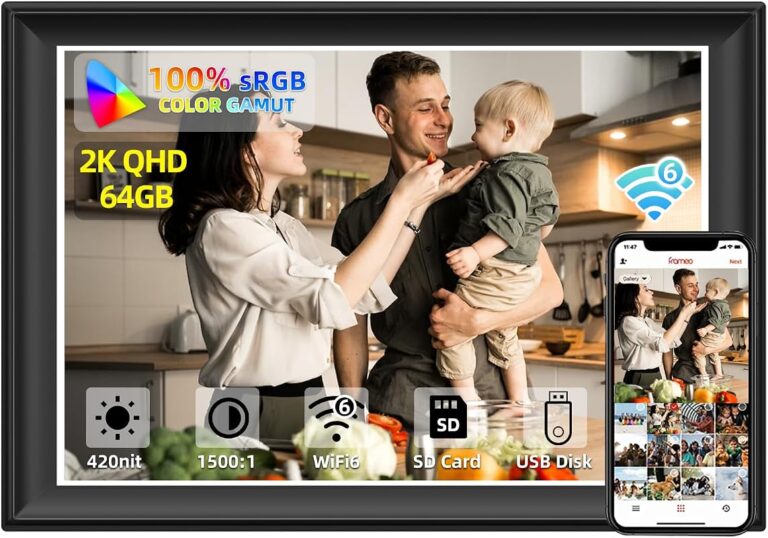
Sd Memory Card for Digital Photo Frame


A digital photo frame uses an SD memory card to load images.
An SD memory card is a simple, reliable way to load photos into a digital frame when you want offline use and easy setup. Choose a card the frame supports, then organize a smaller, well-edited photo set for the best result.
An sd memory card for digital photo frame is a simple, dependable way to load photos when you want a display that does not rely on Wi-Fi, apps, or cloud accounts. It is often the easiest choice for households that want a low-maintenance frame, a straightforward gift, or a screen that can stay set up in one place.
For readers at Hurrell Editions, the practical question is not just which card works, but which card keeps the frame easy to manage, compatible, and pleasant to use over time. The best choice depends on the frame’s supported card type, the size of your photo library, and how organized your images are before you copy them over.
- Compatibility first: Match the frame’s supported card type and maximum capacity before anything else.
- Curate the library: A smaller set of strong photos usually looks better than a crowded slideshow.
- Organize by folder: Events, seasons, and favorites make updates faster and more intentional.
- Back up originals: Keep copies of your images elsewhere in case the card fails.
Sd Memory Card for Digital Photo Frame: What It Is and Who It’s For
An SD memory card stores photos locally inside or alongside a digital photo frame. In most cases, you insert the card into the frame, then the frame reads the image files directly without needing a network connection. That makes it especially useful for people who want a more private, stable, and portable setup.
This option tends to suit gift buyers, renters, and anyone who prefers a plug-and-play routine over app-based syncing. It is also a good fit for frames used in guest rooms, hallways, or secondary spaces where you may not want to manage another connected device. If you are comparing frame ecosystems, our guide to a Wi‑Fi photo frame can help clarify when wireless features are worth the added setup.
How to Choose the Right SD Card for a Digital Photo Frame
The right card is usually the one that the frame can read reliably, not the one with the biggest label. Before buying, check the frame manual or product listing for supported card formats, maximum capacity, and any file system guidance. When those details are vague, confirm them with the manufacturer rather than assuming a newer or larger card will work.
Capacity: Matching Storage to Photo Library Size
Capacity matters, but more is not always better. A modest card may be enough for a small, curated slideshow, while a larger card makes sense if you want to keep seasonal albums, family events, or rotating collections on hand. The right size depends on how many images you plan to store and whether you want room for future additions.
If you only display a few dozen favorite photos, a smaller card can be easier to manage and less tempting to overfill. If you like changing the slideshow often, a larger card gives you flexibility without needing to constantly swap files. The key is to leave some free space so the card stays easy to organize and the frame has room for future updates.
Curate for display, not just storage. A smaller, well-edited card often feels more polished than a huge card packed with every image you own.
Speed Class and Compatibility Basics
Speed class is less about making a photo frame “faster” in a dramatic sense and more about whether the card reads smoothly and reliably. Most photo frames do not need high-performance cards, but they do benefit from cards that are stable and within the frame’s supported range. If the frame manufacturer specifies a class or generation, follow that guidance first.
Compatibility issues often come from using a card format the frame does not support, or from formatting the card in a way the frame cannot read. For that reason, compatibility matters more than speed in many home-display setups. If the frame is older, a basic card that matches the listed format may be a safer choice than a newer, higher-capacity option.
File Format Support and Card Type Considerations
Most digital photo frames are primarily concerned with common image file types, but some models are picky about file structure, folder names, or card formatting. Read the official specifications for supported image formats and maximum card size. If the frame supports only certain SD variants, do not assume every microSD adapter or high-capacity card will behave the same way.
Card type support varies by model, especially on older frames. Always verify whether the frame accepts standard SD, microSD with adapter, SDHC, or SDXC before purchase.
When you are comparing frames as gifts or for shared spaces, the setup experience matters as much as the card itself. A frame that works neatly with a standard SD card can be easier for family members to maintain than one that depends on app permissions or cloud logins. That is one reason many shoppers still prefer a simple card-based setup over more connected alternatives like a Google Photos photo frame.
Best Use Cases by Room, Style, and Display Setting
SD-card-based photo frames work best when you want a display that feels settled into the room rather than constantly managed. The room, lighting, and viewing distance all influence how useful the card setup feels in daily life. Think about where the frame will sit, who will see it, and how often you want to update the images.
Living Room and Shared Family Spaces
In living rooms, the biggest advantage of an SD card is reliability. A card loaded with family photos, travel memories, or seasonal images can keep the frame running without needing anyone to reconnect an app or troubleshoot Wi-Fi. That makes it a strong choice for rooms where multiple people interact with the frame.
Shared spaces also benefit from a curated slideshow. Too many near-duplicate photos can make the display feel busy, while a smaller set of strong images creates a calmer visual rhythm. If your living room already has a mix of printed art and frames, keeping the digital frame’s content cohesive can help it feel intentional rather than distracting.
Bedroom, Home Office, and Hallway Displays
Bedrooms often work well with quieter image selections: calm landscapes, personal milestones, or a limited set of favorite portraits. A card makes it easy to keep the frame self-contained, which is especially useful if you want a low-fuss display that does not depend on daily interaction.
In home offices, an SD card can support a more focused, minimal aesthetic. Hallways, meanwhile, are ideal for rotating travel images or family archives because the frame can act like a small visual pause between rooms. For people balancing decor with function, a card-based setup can pair well with other compact display solutions such as a digital photo frame with clock.
Gift Use for Weddings, Holidays, and Milestones
For gifting, an SD card is especially practical because it lets you pre-load a thoughtful selection of photos before the frame is wrapped. Weddings, anniversaries, graduations, retirement gifts, and holiday presents all benefit from this personal touch. The recipient gets an object that feels ready to use rather than another item that needs setup later.
This approach is also helpful when the recipient is less comfortable with technology. A card can make the gift feel approachable, since there is no app onboarding or account setup required just to see the first slideshow. If you are choosing a frame as a present, the card format may be the detail that makes it feel effortless.
How to Organize Photos for a Better Digital Frame Experience
The card is only part of the experience. A well-organized photo library makes the frame feel smoother, more attractive, and easier to enjoy. Good preparation also reduces the chance of awkward cropping, repetitive slides, or files that do not display properly.
Image Resolution, Cropping, and Aspect Ratio
Digital frames vary in aspect ratio, so not every photo will fill the screen the same way. Portrait images, landscape images, and square crops may all behave differently depending on the frame. Before copying files, consider which images will look best in the frame’s native shape and whether any important details sit too close to the edges.
- Crop with the frame’s screen shape in mind.
- Keep faces and subjects away from the edges when possible.
- Use clear, well-lit images that stay readable from across the room.
- Assuming every photo will display full-frame without trimming.
- Using heavily compressed files that may look soft on screen.
- Loading too many images that differ wildly in composition.
Resolution also matters, but not in a complicated way. A frame needs images that are large enough to look clean on its screen without being so oversized that file management becomes cumbersome. When the manufacturer gives image guidelines, follow them; otherwise, aim for clear, well-sized files rather than extreme edits.
Folder Structure and Slide Show Flow
Folder structure can make a card much easier to use, especially if the frame lets you navigate by album or directory. Grouping photos by event, season, or family branch helps you update the display without rebuilding the entire library each time. It also makes it easier to rotate themes for holidays or special occasions.
- Build one folder for everyday favorites and separate folders for seasonal sets.
- Keep file names simple if your frame is sensitive to sorting behavior.
- Test the slideshow order after loading so the opening sequence feels intentional.
Slide show flow matters because the frame becomes part of the room’s mood. A thoughtful sequence can move from family portraits to landscapes to candid moments without feeling random. If the frame sorts files alphabetically or by date, plan ahead so the order supports the story you want the display to tell.
Choosing Photos That Work Well on Screen
Some photos simply translate better to a small or medium screen. Strong contrast, clean composition, and clear subjects usually read better than crowded scenes or images with tiny details. Photos with natural light also tend to feel more balanced on digital displays.
Think of the frame like a tiny rotating gallery wall: fewer, stronger images usually create a more elegant result than a long, unfocused slideshow.
Portraits, travel scenes, architectural details, and simple still lifes often work especially well. If you want the frame to feel calm rather than busy, choose images with similar color tones or a shared theme. That visual consistency can make the display feel more like decor and less like a random album dump.
Benefits and Limitations of Using an SD Memory Card
An SD card remains popular because it is simple, portable, and easy to understand. But it is not the right solution for every frame or every household. The best choice depends on how much control you want, how often you update photos, and whether compatibility is a concern.
Why SD Cards Remain a Practical Option in 2026
SD cards continue to be practical because they do not require internet access, subscriptions, or app permissions. That makes them ideal for people who want a private, self-contained display or a gift that is ready to enjoy immediately. They are also easy to move between devices when you need to refresh the photo set.
- Simple setup with no account login required
- Works well in low-tech or offline spaces
- Easy to pre-load for gifting
- Compatibility depends on the frame model
- Updating photos usually requires manual file management
- Not as convenient for remote sharing as cloud-connected frames
For many households, that tradeoff is worth it. The card-based approach keeps the experience focused on the photos rather than the software. It also fits naturally into rooms where you want decor to feel calm and uncluttered.
Common Drawbacks and Compatibility Issues
The biggest limitation is that not every frame supports every card. Older models may have narrower format support, and some frames can be particular about file organization or card formatting. If a card is not recognized, the issue may be the format, not the photos themselves.
Before buying a larger or newer card, confirm the frame’s supported capacity and card type. When specifications are unclear, check the manual or manufacturer support page rather than guessing.
Another drawback is that manual updates can become tedious if you like changing images often. In that case, a Wi‑Fi model may be more convenient. But if your priority is a straightforward, durable, and low-maintenance display, the SD card still holds up well.
Care, Maintenance, and Long-Term Reliability
SD cards are small, but they benefit from careful handling. A little routine maintenance can help prevent file corruption, accidental loss, and compatibility headaches. The goal is to keep the card readable and the photo library backed up.
Safe Handling, Storage, and Backup Habits
Handle the card gently and keep it away from dust, heat, and moisture. Store a backup copy of your photo library elsewhere, ideally on another drive or cloud service, so you are not relying on a single card as the only version of your images. If you update the card often, keep your original edited files organized in a separate folder before copying them over.
- Confirm the frame’s supported card type and maximum capacity
- Check whether the frame needs a specific file system or formatting method
- Plan a small, curated photo set instead of loading everything at once
- Keep a backup of every image you place on the card
If the card will be used in a sunny room or near a warm window, it is worth being extra cautious with storage and handling. Heat and repeated removal can shorten the useful life of any memory card, especially if it is frequently rewritten.
When to Replace an SD Card
Replace a card if the frame starts reading it inconsistently, if files disappear, or if the card becomes difficult to format and reuse. Frequent error messages, corrupted folders, or unusually slow loading can also signal that the card is nearing the end of its reliable life. Even without visible damage, a card that has been heavily rewritten may be better retired.
For long-term reliability, it is usually smarter to keep one card dedicated to the frame rather than swapping it constantly between devices. That reduces wear and lowers the chance of accidental deletion or file confusion. If you do need to refresh the content often, create a simple routine for copying, verifying, and safely removing the card.
Final Recommendation: The Best SD Card Approach for Most Digital Photo Frames
For most digital photo frames, the best approach is a card that matches the frame’s exact compatibility requirements, gives you enough room for a curated photo set, and stays simple to manage. In practice, that usually means choosing a standard card type the frame explicitly supports, organizing a smaller selection of strong images, and keeping a backup of everything you load.
If you want the most dependable experience, prioritize compatibility and ease of use over maximum capacity or technical specs you may never need. That is especially true for gifts, shared family spaces, and rooms where the frame should feel like part of the decor rather than another device to maintain.
Frequently Asked Questions
The best card is the one your frame explicitly supports, such as standard SD, SDHC, SDXC, or microSD with adapter. Always check the manual or product listing before buying.
It depends on how many photos you want to keep on the frame and how often you plan to update them. A smaller curated library often works better than filling a large card with every image you own.
The most common reasons are unsupported card type, unsupported capacity, or formatting the card in a way the frame cannot read. Check the frame’s specifications and reformat only if the manufacturer recommends it.
Use clear folders for events, seasons, or favorite collections, and keep the slideshow focused on strong, readable images. This makes updates easier and helps the display feel more intentional.
Yes. Keep the card dry, cool, and backed up, and avoid frequent rough handling or constant swapping between devices. Replace it if the frame starts reading it inconsistently.
An SD card is usually better for simple, offline, low-maintenance use, while Wi-Fi is better for remote updates and app-based sharing. The right choice depends on how often you change photos and how much setup you want.